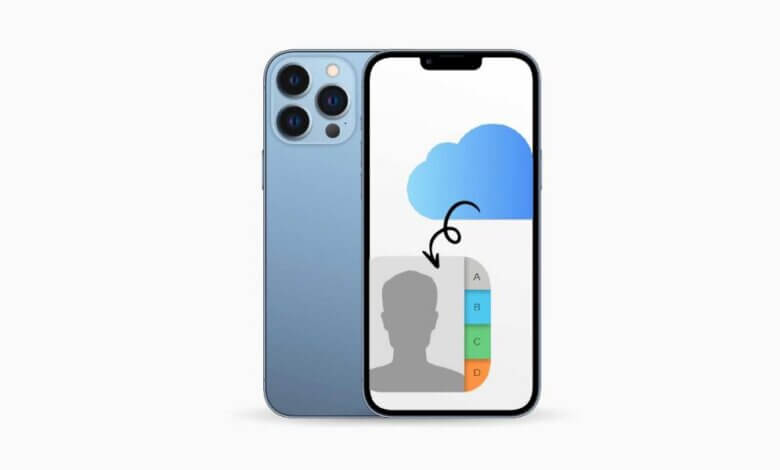
“It makes me confused when I continually see Facebook status updates/tweets/emails from friends and acquaintances broadcasting panicked messages and asking everyone to send phone numbers to them. They are saying that “My iPhone has been lost/stolen/eaten by my pet dogs.”
Losing iPhone contacts is actually a great excuse to ask everyone to send you their numbers. But how can you stand that then you need to input these countless numbers into your iPhone one by one? So for those of you who are still haven’t figured out a better way, without further ado, I will introduce some workable ways for you.
Récupération de données iPhone offers an affordable and convenient data recovery solution for you. With this iPhone contacts recovery tool, you can recover iPhone contacts from iTunes backup or iCloud backup. Or if you have no backup, you can directly restore contacts from iPhone 13/12/11, iPhone Xs/XR/X, iPhone 8/8 Plus/7 Plus/7/SE/6s Plus/6s. Next are three solutions to show you how to get back lost contacts on your iPhone and a tip to re-download contacts from iCloud.
You can get a trial version download here and have a try under the instructions below.
Téléchargement gratuit Téléchargement gratuit
Solution 1: How to Restore Contacts on iPhone Directly
Step 1: Run the software and connect iPhone
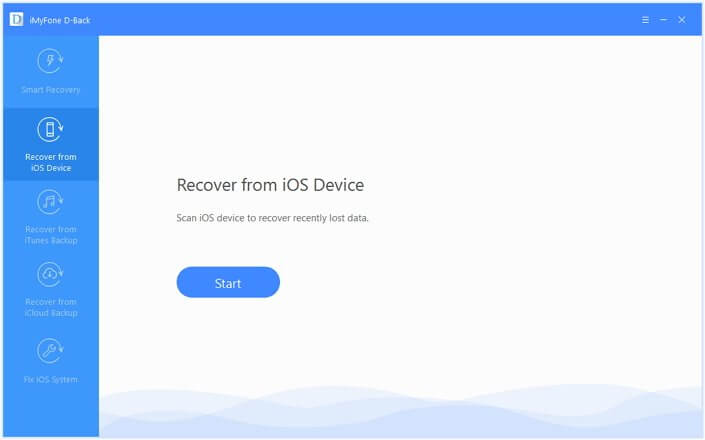
To restore contacts from iPhone without backups, please download the Récupération de données iPhone and install it on your computer. Then, launch it and connect your iPhone to the computer (Windows or Mac).
Step 2: Scan contacts on iPhone
Tap the “Start Scan” button, the program will start to scan your iPhone for the missing contacts. The whole progress is decided by the amount of data on your device.

Step 3: Preview contacts from iPhone
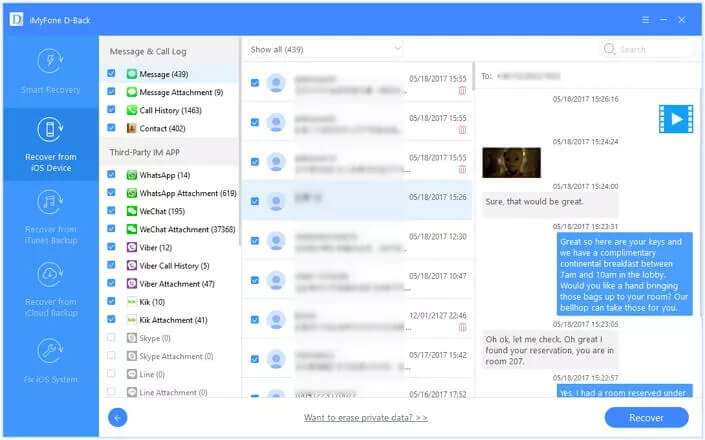
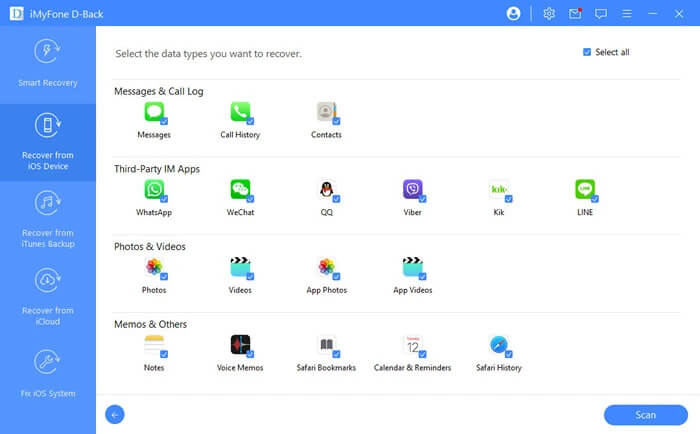
After scanning, all your iPhone data, including the missing ones and the existing ones are listed in the category. You can preview them one by one, contacts, videos, music, photos, text messages, calendars, and so on, according to categories. You can also choose “Contacts” only to preview your iPhone phonebook including Name, Company, Phone, Email to save time.
Step 4: Recover contacts from iPhone
After marking down all you want in previewing, click the “Recover” button at the right corner of the bottom to get back the lost iPhone phone numbers. The contacts will be exported in CSV, HTML, and VCF files on your computer. If necessary, you can import them back to your iPhone.
That’s how you restore iPhone deleted/lost contacts without iTunes or iCloud. If you have iTunes, and iCloud backups, follow the below steps to extract lost contacts from the backups.
Solution 2: How to Restore iPhone Contacts from iTunes
Step 1: Choose “Recover from iTunes Backup File”
By using this way, you need to assure that you have backup your iPhone data before with iTunes. Then choose « Récupérer à partir d’un fichier de sauvegarde iTunes » on the left panel. Then all iTunes backup files will show up on your computer automatically.
Téléchargement gratuit Téléchargement gratuit

Step 2: Scan the contacts of iTunes
Select the one you want in all iTunes backup files which have been found and click the “Start Scan” button to extract it quickly.
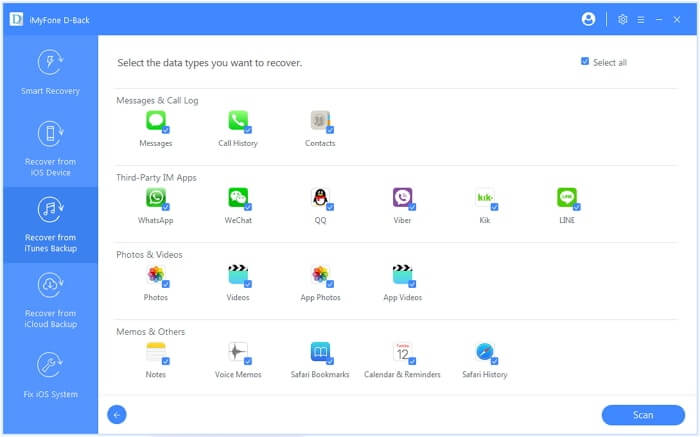
Step 3: Preview contacts found in the scanning
After finishing scanning, lost data files will be shown orderly. You can choose “Contacts”, preview them one by one, and select those contacts you want back at last. You can turn on the button “Only display the deleted items” to refine the results.
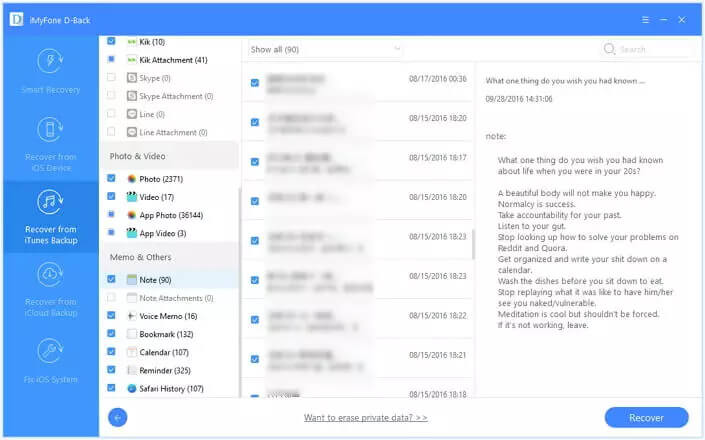
Step 4: Recover Contacts from iTunes
After marking all you want back, click “Recover” on the lower-right corner of the interface. And wait till the process ends.
Solution 3: How to Restore iPhone Contacts with iCloud
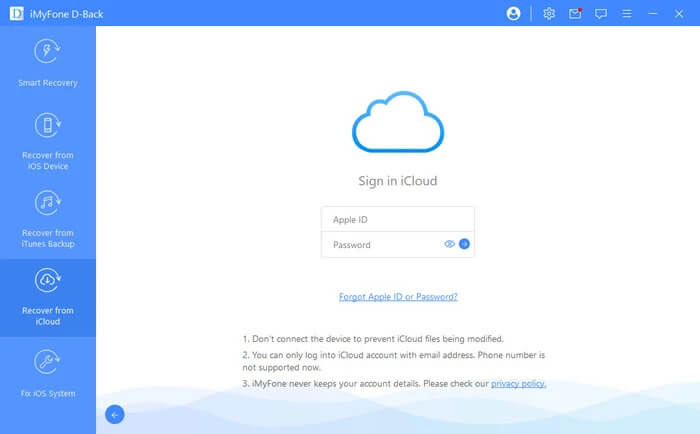
Step 1: Sign in to iCloud
Launch the program and select « Récupérer à partir d’un fichier de sauvegarde iCloud » . Sign in to iCloud with your Apple ID and password as required.
Téléchargement gratuit Téléchargement gratuit
Step 2: Download and export iCloud backup
You will see the backup files of your iCloud backup account automatically after entering the program. Choose any data you want to recover by clicking the “Download” button on the right side of the table.
Step 3: Scanning and previewing
The software will scan the data in the backup automatically after downloading. Please click the “Contacts” item to preview all lost contacts.
Step 4: Recover deleted contacts
Proceed to the “Recover” button to restore your iPhone contacts on your computer. If you want to restore the contacts directly back to the device, please hit the “ Restore to Device " bouton.
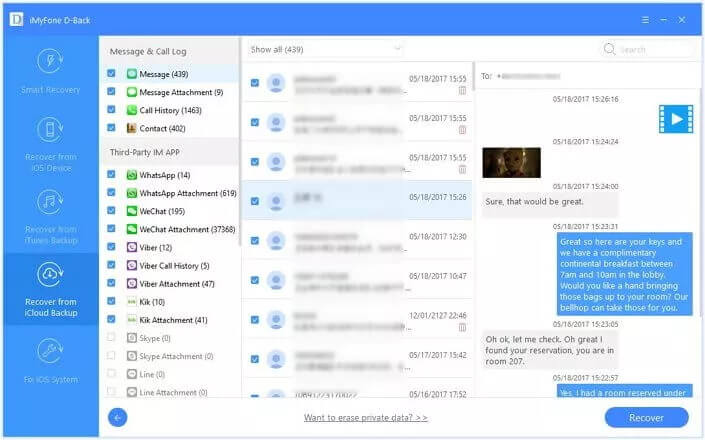
It is also available to edit your contact details with the “ Modifier " bouton.
Téléchargement gratuit Téléchargement gratuit
Tip: Recover Contacts By Re-downloading from iCloud (Delete Existing Contacts)
If you have made an iCloud backup before, you can get back the lost contacts by re-downloading from iCloud.
Étape 1. On iPhone, open “Settings” > “iCloud”. Toggle on the button next to “Contacts”. If the button is on, switch it off. You’ll be asked what to do with the existing contacts, choose “Delete from My iPhone”.
Step 2. Then turn on “Contacts” again. Tap on “Merge” in the pop-up window. The iCloud contacts will be re-downloaded to your iPhone.
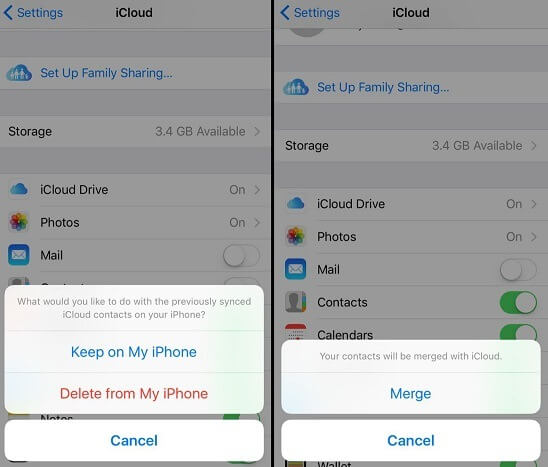
Note : You may lose the existing contacts during the process. So Récupération de données iPhone is a better option that will not change a simple thing on your iPhone as well as recover iPhone photos , messages, contacts, videos, etc. effectively.
Téléchargement gratuit Téléchargement gratuit
Ce message vous a-t-il été utile ?
Cliquez sur une étoile pour donner votre avis !
Note moyenne / 5. Dénombrement des votes :