In order to meet the growing demand for the user, the memory of the iPhone is becoming larger and larger, has already reached 1TB. However, in many cases, some iPhone users still found their device insufficient memory space, a large extent is because of the plenty of photos and pictures. Do the photos take too much of your space? To solve this problem, the best way is to clean up the unwanted files in your mobile phone, so as to release the extra space on your iPhone. Nevertheless, how can we free up storage space on iPhones? Please don’t worry, continue reading.
Effaceur de données iOS is a user-friendly and reliable data erased and management tool for iPhone iPad and iPod users. With the help of this erased software, you can clear junk files, compress photos, erase the private or deleted file, and even delete all files with ease. Therefore, please do not miss this useful and professional tool, and one-click to free up storage space on your iPhone. What’s more, the compression will never ruin your photos, there is not too much difference before and after the compression.
Free Download a trial Windows or Mac version here, and have a try now.
Téléchargement gratuit Téléchargement gratuit
टिप्पणी: Effaceur de données iOS applies to almost all iPhones, including iPhone 13/12/11.
How to Compress Photos and Free Up Storage Space on iPhone
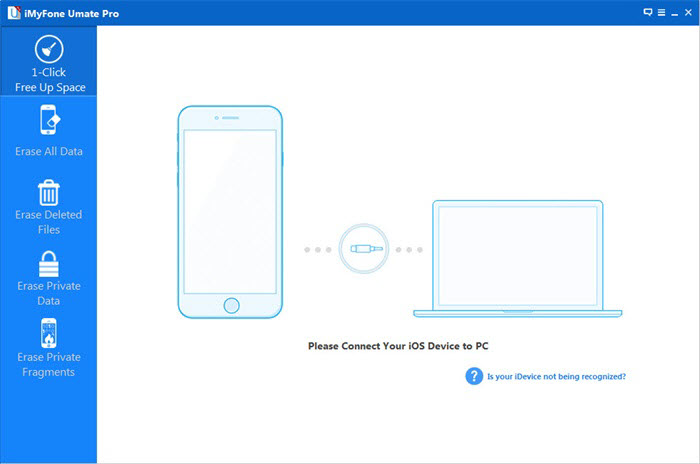
Step 1: Install and launch the iPhone Data Eraser on your PC, and connect your iPhone to PC with a USB cable
Étape 2 : Scan the captured photos on your iPhone
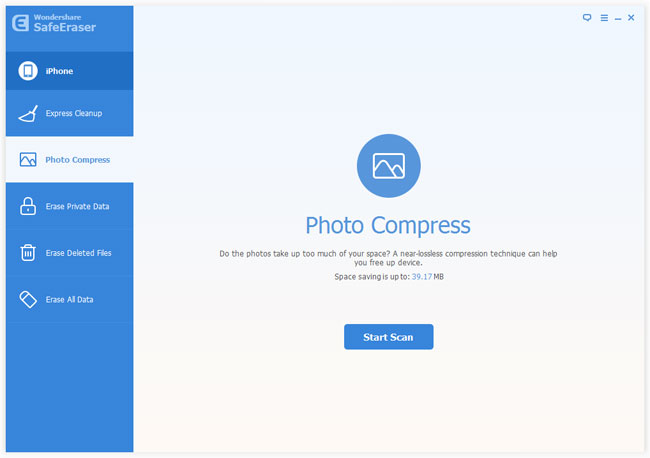
Tap “Photo Compress” in the left sidebar, and then click on “Start Scan” to scan the captured photos on your iPhone, the whole scanning process will not spend too much of your time, please wait a moment.
Étape 3 : Preview and compress all photos on your iPhone
As soon as the scan is completed, you can see all captured photos in the window on the right, besides, the program will tell your how much space you can save if you compress all these captured photos.
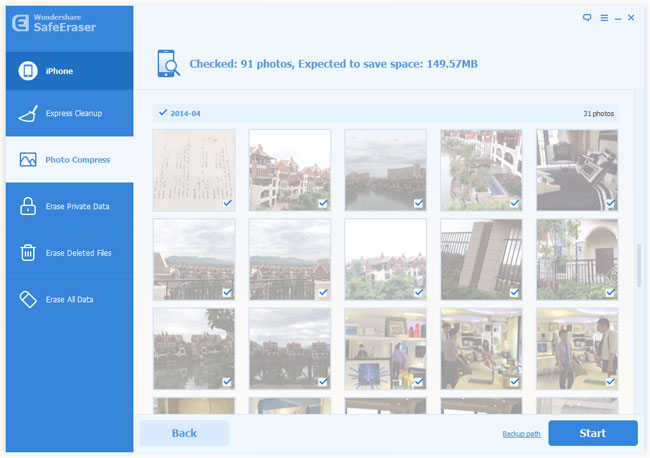
In addition, you may have found the “Backup path” option near the “Start” button in the same window. Universally, Effaceur de données iOS will automatically backup these original photos to your PC before doing the compression, and it’s the default backup path on your computer. If your want another backup path, just click in to change it.
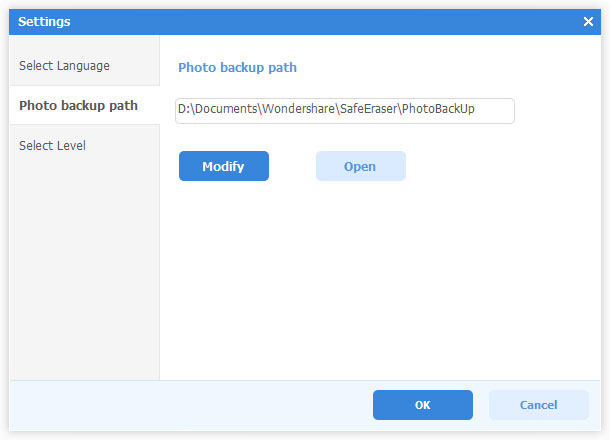
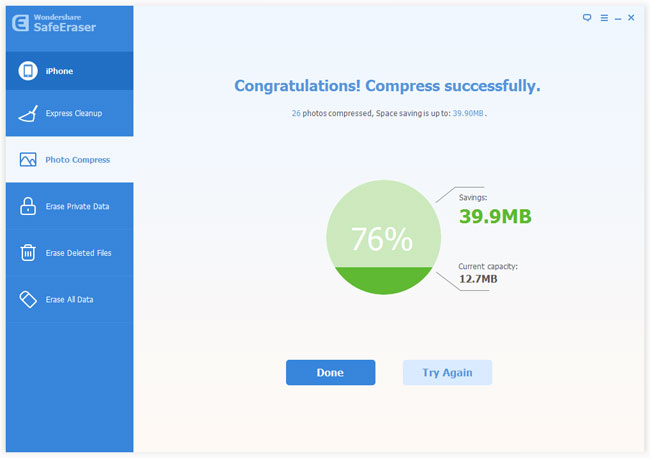
Now, please click on “Start” to compress your photos and free up storage space on your iPhone. Once the compress is completed, you will be told that how much space you’ve saved and the current capacity your photos occupied.
Téléchargement gratuit Téléchargement gratuit
Ce message vous a-t-il été utile ?
Cliquez sur une étoile pour donner votre avis !
Note moyenne / 5. Dénombrement des votes :